One of the most common missteps I see is a failure to make sure all billable expenses are, in fact, billed to the client. Here are the steps to make sure you get those expenses billed.
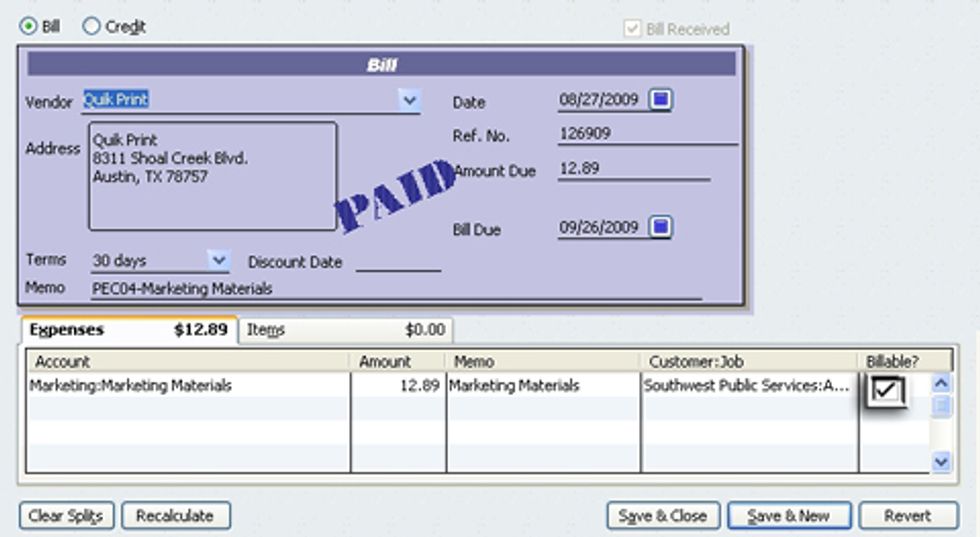
The first step is to make sure that you check the “Billable?” field during entry of bill, credit card, or check.
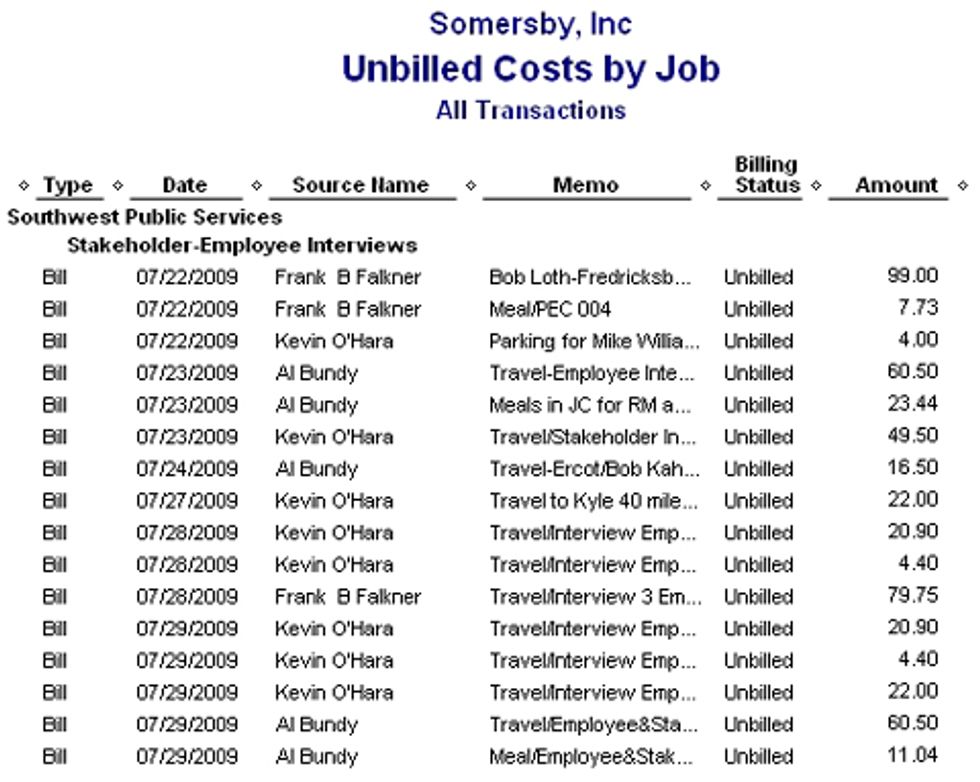
The next step comes when you are ready to invoice for billable expenses. Select “Customers & Receiveables” and “Unbilled Costs by Job” from the reports menu to review all pending billable expenses.
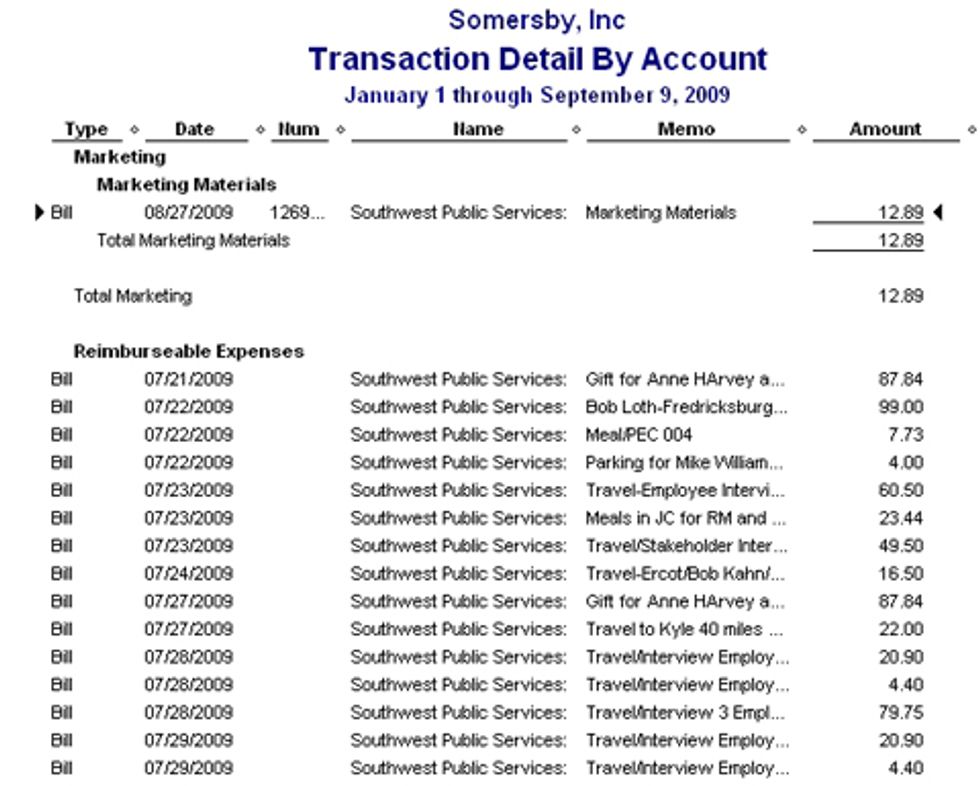
When you are ready to bill a specific Customer/Job, it’s always a good idea to run a “Custom Transaction Detail Report”, selecting the specific customer and job and review any expenses to see if they should be billable.
When you open the invoice screen and select a specific customer and job, QuickBooks will prompt you to add unbilled expenses if there are any on file. You can also access the billable expense selection menu by clicking on the “Add Time/Costs” icon at the bottom of your screen.
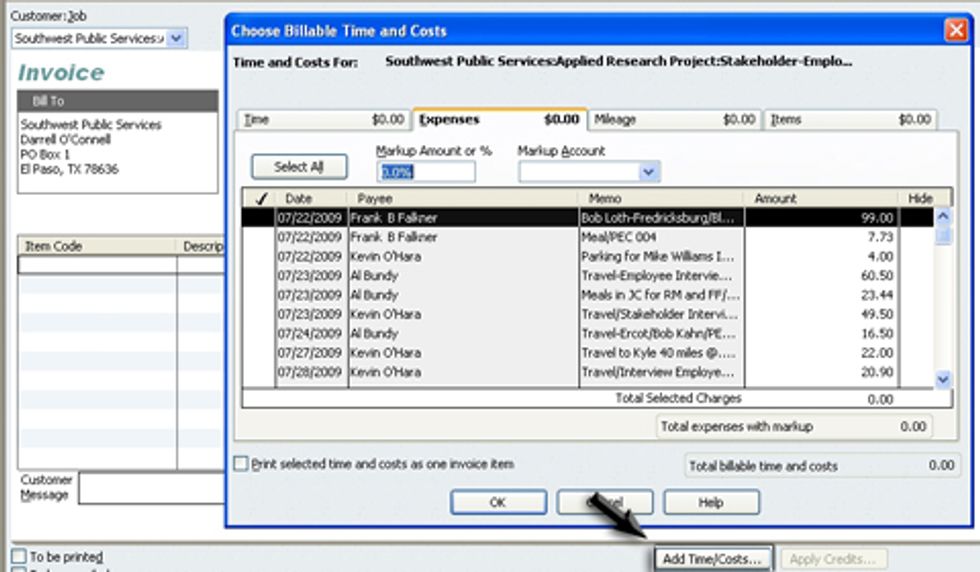
Chose selected expenses or all unbilled expenses and click the OK button to add these expenses to your invoice.
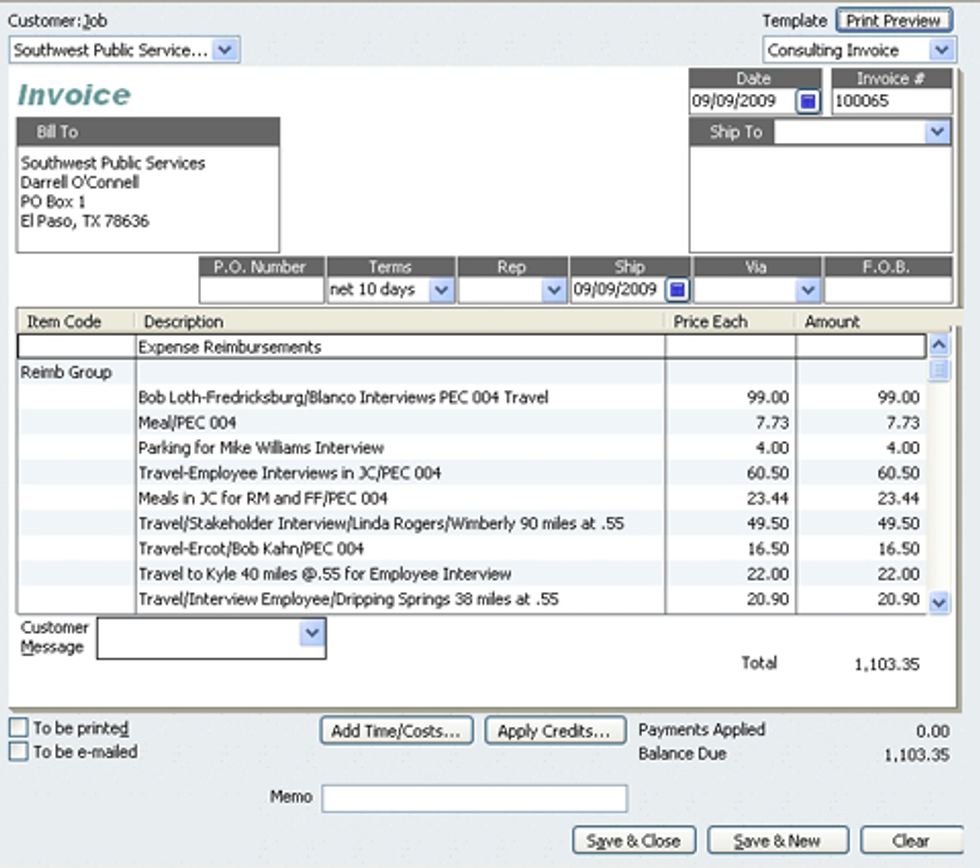
An easy way to make sure you bill all billable expenses is to create and “Other Expense” account named “Reimburseable Expenses”, select that account for each billable expense, and remember to check the “Billable?” field. When you do this, all you have to do is look at an income statement to see the amount of all unbilled expenses.
Robert Guild is certified QuickBooks ProAdvisor in Austin, TX who conducts CPE courses for CPAs and individual training and group classes to QuickBooks users. His company at www.QBCoach.biz, maintains a sixteen-station QuickBooks lab, providing hands-on training. You can contact him directly at rguild@QBCoach.biz or follow him on twitter at QBPro